Access via Online Services
The NHS App
 Information provided by the Bicester Health Centre Patient Participation Group (PPG)
Download this page as a leaflet
Use the NHS App to order repeat prescriptions, get test results, view your medical record and contact the surgery.
Download the App to your device:
 https://itunes.apple.com/us/app/nhs-app/id1388411277?ls=1&mt=8 https://itunes.apple.com/us/app/nhs-app/id1388411277?ls=1&mt=8 |
 https://play.google.com/store/apps/details?id=com.nhs.online.nhsonline https://play.google.com/store/apps/details?id=com.nhs.online.nhsonline |
What you can do with the NHS App.
You need to have an email address (at least 6 characters) and a telephone number.
You need to prove who you are (see below) to get full access to the NHS App:
With full access you can:
- order repeat prescriptions
- book and manage some appointments e.g. for blood tests and 'flu vaccinations.
- view your GP health record to see information like your allergies and medicines, test results, hospital letters.
Patients transferring to the practice may not have full historic data. - manage your organ donation decision.
- find out what your NHS number is.
- use NHS 111 online to answer questions and get instant advice or medical help near you.
Before proving who you are, you can use the NHS App to:
- search trusted NHS information and advice on hundreds of conditions and treatments.
- find NHS services near you.
What you need to access the NHS App:
You need to have an email address, a phone number and you need to prove who you are. If you have not proven who you are, in the NHS App you'll see a message asking you to prove your identity to get full access. Your GP surgery controls the level of detail you will see in your health record.
How to prove who you are:
You can prove who you are using photo ID such as a Passport, Driving Licence or European National Identity Card.
- Take a photo of your ID
- record your face using your device
- enter your NHS number if you know it
This is a quick and safe method which provides instant access once completed.
If you do not have photo ID you can use the 3 registration details for online services, avaialble from the reception team:
- Linkage Key (could be called Passphrase)
- ODS Code (Organisation or Practice ID)
- Account ID
A linkage key will be emailed to you, but this may take 2 - 3 days to process and send.
Get help with installing and using your NHS App.
Come to the Digital Cafe at Bicester Health Centre, 1st Friday of each month from 2.00pm to 4.00pm
Age UK at Bicester Library has drop-in IT sessions on the 2nd and 4th Saturday of the month. Enquire at the desk, or 01865 816011.
Age UK: Call 01235 849434
Finding your TEST RESULTS on the NHS App.
Finding your TEST RESULTS on the NHS App.
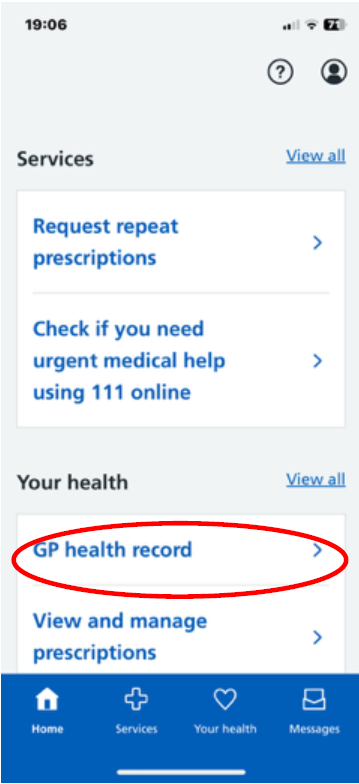
Once logged into the App, select "GP Health Record"
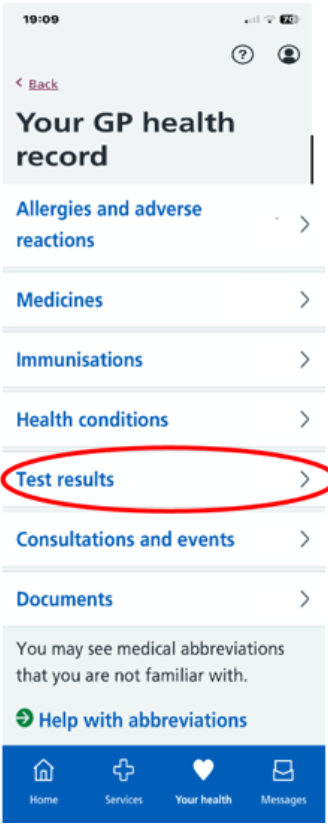
Click on the “Test Results” item on the “Your GP health Record” menu list. Your results will be displayed with the most recent at the top. If you cannot see your result, check back in a few days.
Ordering your Prescription
Ordering your Prescription
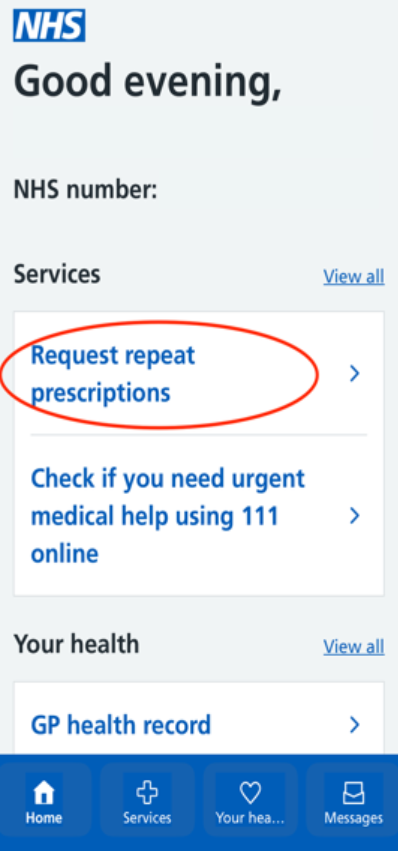
Click on the first item on the home tab “Request repeat prescriptions. The next page will show any items on your GP record available for request. Click in the box(es) of items required. NB The Notes to surgery may not be seen. Contact Bicester Health Centre if Urgent but please remember prescriptions cannot be ordered in a telephone call.
Contacting the GP Surgery on the NHS App using eConsult
Contacting the GP Surgery on the NHS App using eConsult
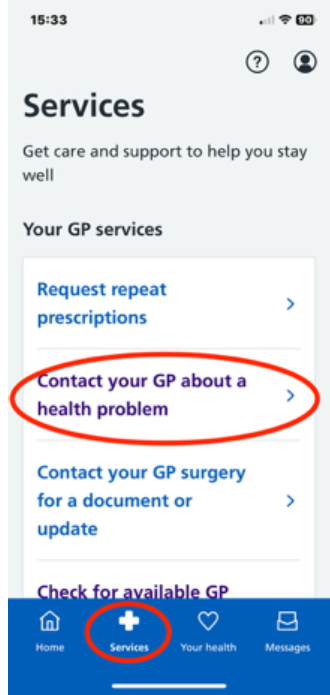
Once logged into the App, select “Services” in the blue band at the bottom of the screen. Then click in the “Contact your GP about a health problem” box. This will open the eConsult page of the app.
Using the NHS App to make an appointment
Using the NHS App to make an appointment.
Only appointments for Baby Clinic, Blood tests or Cervical smear tests can be made online. All other appointments must be made via eConsult (above).
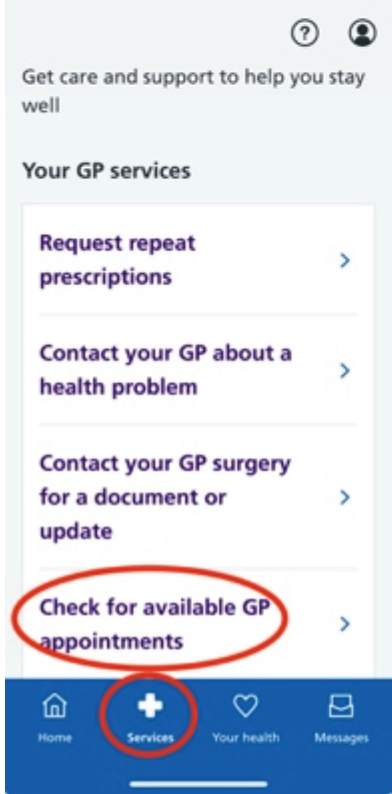
Select “Services” in the blue band at the bottom of the screen.
Click in the “Check for Available GP Appointments” box. You cannot book a GP appointment with this tab, only those listed above. On the next screen, click on “Select Type” and use the drop-down menu. Scroll down for available dates. Click on the date of your choice, then select the time. To change the day, click on the (yellow) date bar and search again.
This information has been prepared by the Bicester Health Centre Patient Participation Group (PPG), and images and content are to the best of our knowledge, correct at the time of preparation. If you would like to join the PPG, please sign up on the PPG page.
Download this page as a leaflet
Page created: 21 December 2023